Customer Information | |
Country | Netherlands (Belgium, Malta) |
Customer Name | Mycronic B.V. |
Delivery Address | Gebouw Mu P O Box 8026 High tech campus 10 NL-5601 KA EINDHOVEN NETHERLANDS |
Customer Number Facility Warehouse | 7610 008 800 |
Contact Person | Constance Schaap or Karin Beekmans |
Email Address | |
DHL
| Please use our Mycronic NL account (967565808) with DHL starting from 2025-09-30. Check for special instructions (especially Belgium) or if they provided other account. |
DHL Account Belgium + Malta från 1 feb-2025 | Use Mycronic SE UPS account: 096F1R
|
Other important information: | |
Wednesday delivery of distribution orders | |
Special requirements:
- Daily CO orders are created by Holland and we only do the freight booking, no need for proforma invoice.
- When receiving the picking list, we book it via DHL on NL DHL account , after we print label to warehouse printer “Brest” and save them in the country folder together with the picking list.
- In case of Cartridge shipment, add the Compliance Certificate if its requested.
- Receiving division is 800 for internal invoicing
- Delta/ Malta special template to fill in “Shipping form” + Delivery note (M3/MWS410, see next page for instruction). Email to Delta: logistics@deltamalta.com
cc to Constance.Schaap@mycronic.com Karin.Beekmans@mycronic.com
For Dipaul Russia, new delivery address: 197101, Saint Petersburg, Bolshaya Monetnaya st. 16, building 45_1, lit. Yu, room 35 (p. 1). In this connection, the company KPP number has been changed to 781301001.
Task | Complete (Y\N) | Notes |
UPS booking and printing shipping labels
|
|
|
Archiving all documents to the country’s folder |
|
|
Add cost to Freight cost excel file. |
| Freight cost invoicing every month. |
Print out Delivery note M3
MWS410
Sorting order: 7-One delivery,
Copy Delivery number in Delno – enter,
Right click – Related Options, choose CTRL+21 – Delivery Document,
Select row – Right click – Related Options, choose CTRL+28 – Print Documents
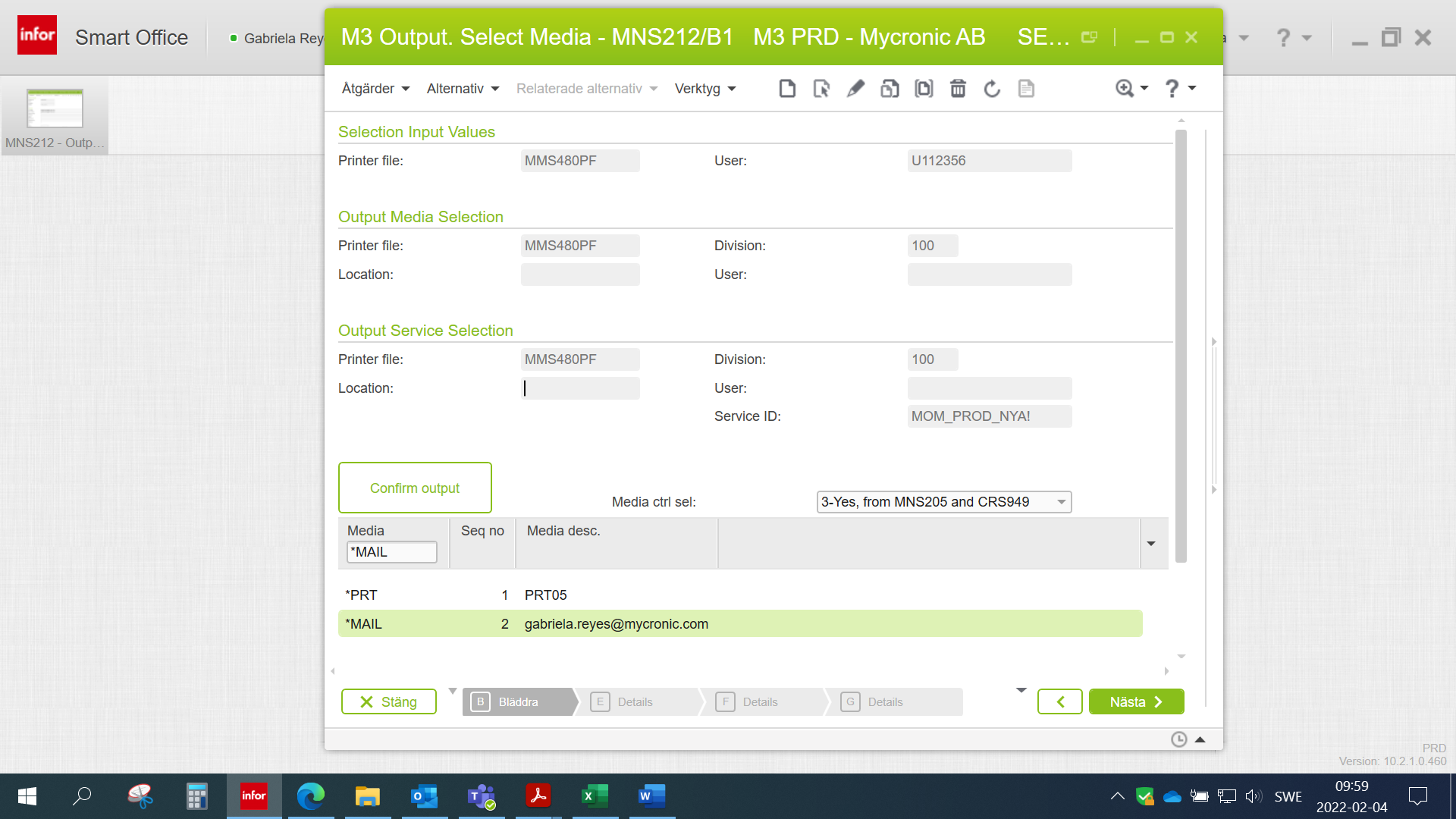
To add print our to your e-mail address :
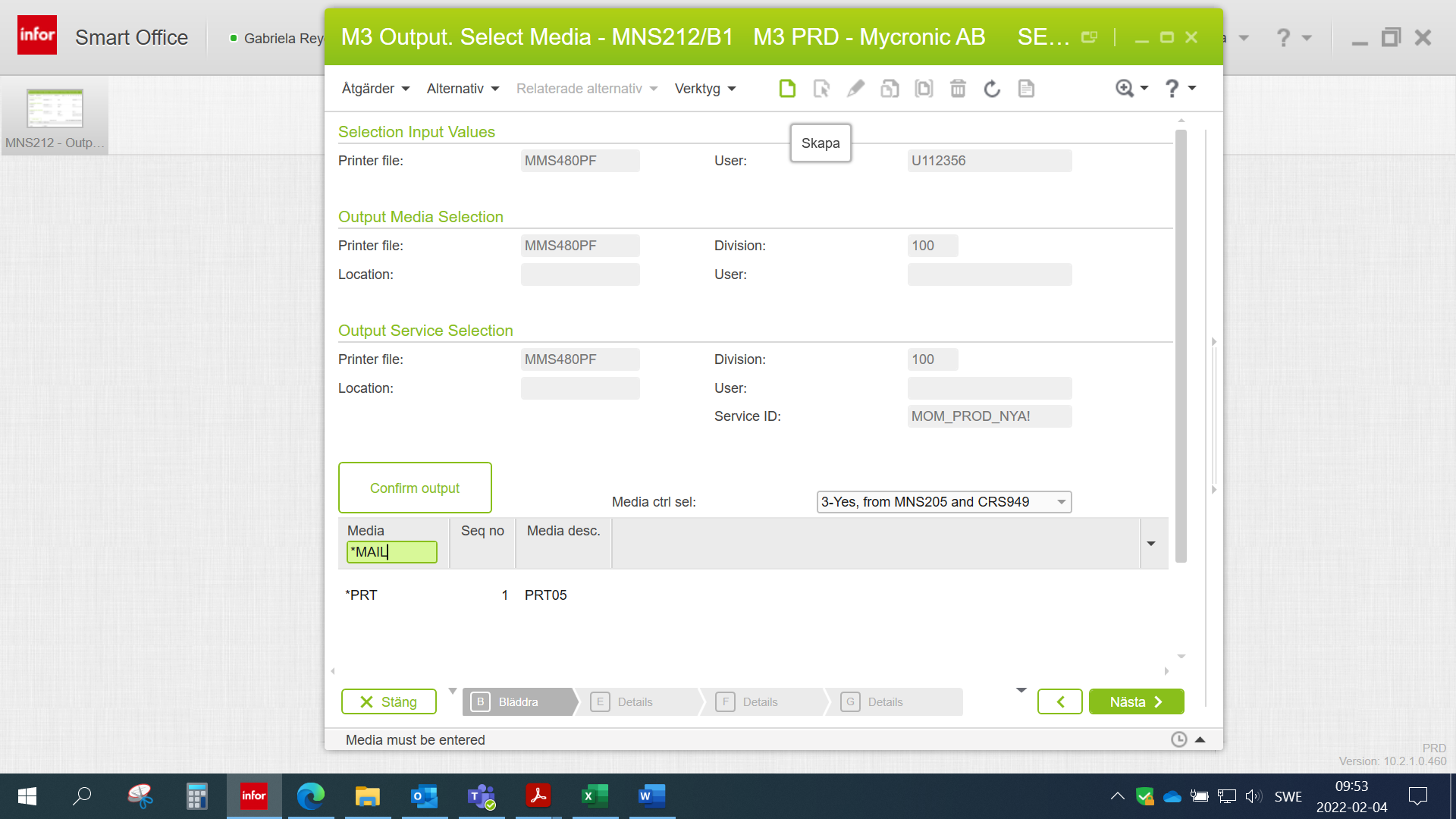
Media: *MAIL
Click on the Create (skapa) icon on the top.
Choose Next
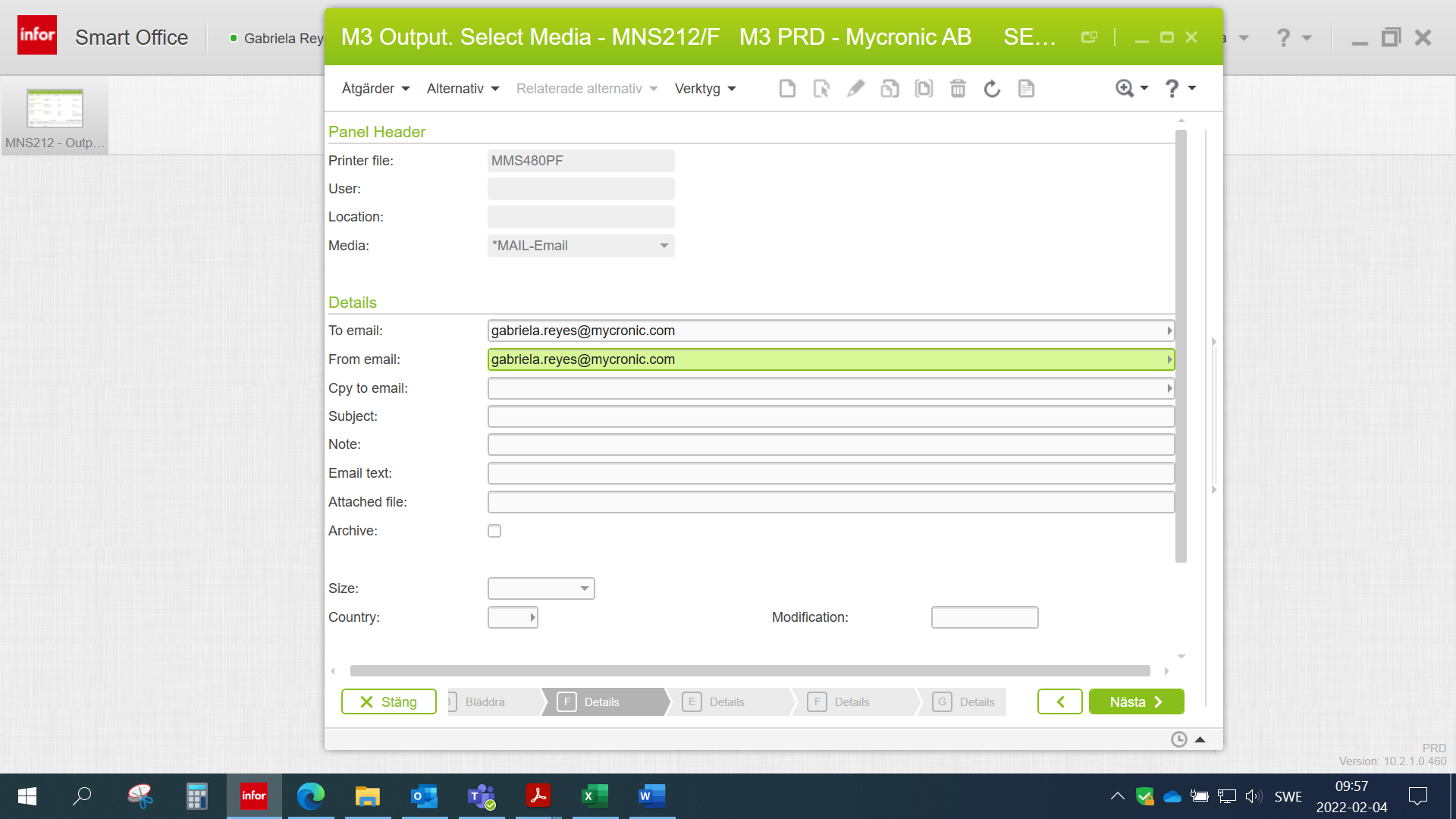
Now write the e-mail addres on both « to e-mail » and « from e-mail »
Enter Next
Was this article helpful?
That’s Great!
Thank you for your feedback
Sorry! We couldn't be helpful
Thank you for your feedback
Feedback sent
We appreciate your effort and will try to fix the article